
- Email marketing
- Gravity Forms
Ecomail for Gravity Forms
Connect Gravity Forms to your Ecomail lists. Transfer contacts, map their details and add tags from your forms, with consent checked before transfer.

 Works with Gravity Forms
- Version
- 1.1.1 · 26 Oct 2026
- WordPress
- 6.6+
- PHP
- 7.4+
- Gravity Forms
- 2.8.12.1+
- Languages
- Italiano, English
Features
From your form to your Ecomail list
-
Choose a list for each feed
Select the destination list, then map email, name, company, phone and other contact details, including that list’s custom fields.
-
Add tags without losing existing data
Tags are added to those already on the contact. Only populated mapped fields update existing data: empty fields do not erase it.
-
Check consent before transfer
Choose the form field and the value that represents consent. Only matching submissions are queued for Ecomail.
-
Respect subscription status
Contacts unsubscribed, bounced or marked as spam in the selected list remain unchanged. Contacts awaiting confirmation keep that status.
-
Use Gravity Forms conditions
Use conditional logic for each feed and Gravity Forms’ native post-payment actions to delay processing until payment.
-
Track background operations
WP-Cron processes the queue, with bounded retries for temporary errors. Recent operations shows results and partial successes, with manual retry available within seven days where possible.
Pricing
Choose how many sites
Yearly license with updates and support. It renews automatically and you can cancel at any time. Refund within 30 days of the first purchase.
Every license includes everything
The features are the same for everyone: only the number of sites where you can activate the plugin changes. The Agency plan adds priority support. Your Ecomail account and Gravity Forms license are separate.
- All plugin features
- Unlimited forms
- Updates for one year
- Full documentation
- First-purchase refund within 30 days
- Standard email support
- Priority support
- Response within 24 business hours, Monday–Friday
Frequently asked questions
Before you choose
Requirements, consent and how it works: answers to help you choose the right plugin.
What do I need?
WordPress 6.6+, PHP 7.4+, Gravity Forms 2.8.12.1+, working WP-Cron and an Ecomail account with API access. Ecomail and your form builder are separate from the taniot license. Check API availability in your Ecomail plan.
Can I connect an account with many lists?
The integration supports accounts with up to 50 lists, provided Ecomail returns the lists and fields within 15 seconds. If this limit is exceeded or the request times out, the connection is not saved. Resolve the issue before connecting again.
Does it send campaigns or WordPress emails?
No. This plugin transfers contacts to Ecomail lists. It does not replace SMTP or send newsletters. You manage campaigns in Ecomail.
Does it handle double opt-in and automations?
The plugin does not send confirmation emails. Ecomail requires a verified sender domain to enable list double opt-in; the complete confirmation flow is not yet verified for this integration. The optional automation setting sends a request to Ecomail, but an automation starting is not guaranteed. Test your Ecomail workflow before relying on either behavior.
What happens to existing contacts?
Subscribed contacts are updated only with populated mapped fields. Existing tags are retained. Unsubscribed, bounced or spam-marked contacts in the selected list are left untouched; pending contacts stay pending. Ecomail groups are not supported.
Are all email addresses supported?
Ecomail rejects addresses containing an apostrophe. The plugin skips them without changing the address. Gravity Forms records a note on the entry. Addresses with a plus sign are supported.
Do contacts arrive immediately?
Transfers run in the background and depend on WP-Cron and Ecomail response times. The form does not wait for Ecomail; temporary connection errors are retried automatically.
Can I use one plugin with both form builders?
Ecomail for Gravity Forms and Ecomail for Contact Form 7 are separate products. Choose the one for your form builder; each works independently.
Does the license renew automatically?
Yes, every year. You can cancel automatic renewal from the customer area. The license includes updates, downloads and support for one year.
Can I request a refund?
Your first purchase is refundable within 30 days, without giving a reason. This guarantee does not cover renewals or plan changes; your statutory rights remain unaffected.
What support is included?
Email support directly from the developer. The Agency plan includes a priority response within 24 business hours, Monday–Friday.
See also

The same Ecomail lists and tags, from forms built with Contact Form 7.
Documentation
Set up the plugin
- What you need
- Installation and license
- Connect Ecomail
- Configure your feed
- Subscriptions and limitations
- Test and troubleshoot
- Change connections and remove data
- Have a use case to check?
What you need
WordPress 6.6 or later, PHP 7.4 or later and Gravity Forms 2.8.12.1 or later, installed and active.
You need your own Ecomail account with API access and an administrator who can obtain the API key in account settings → Integrations. Check API access in your plan; the Ecomail service is not included.
Prepare your destination lists, custom fields and tags in Ecomail. Accounts with more than 50 lists are not supported. WP-Cron must run reliably.
Installation and license
- Install and activate Gravity Forms. Download the complete Ecomail for Gravity Forms ZIP from your taniot customer area.
- In WordPress, open Plugins → Add New Plugin → Upload Plugin, select the ZIP, install and activate it. Its dependencies are included.
- Open Forms → Settings → Ecomail, paste the key from your taniot customer area and choose “Activate license”. “Save Settings” is only for preferences.
Your taniot license provides updates, downloads and support. It is separate from the Ecomail API key.
Connect Ecomail
- Copy the API key from your Ecomail account settings → Integrations. You need administrator access to see it. Keep the key private.
- Open Forms → Settings → Ecomail.
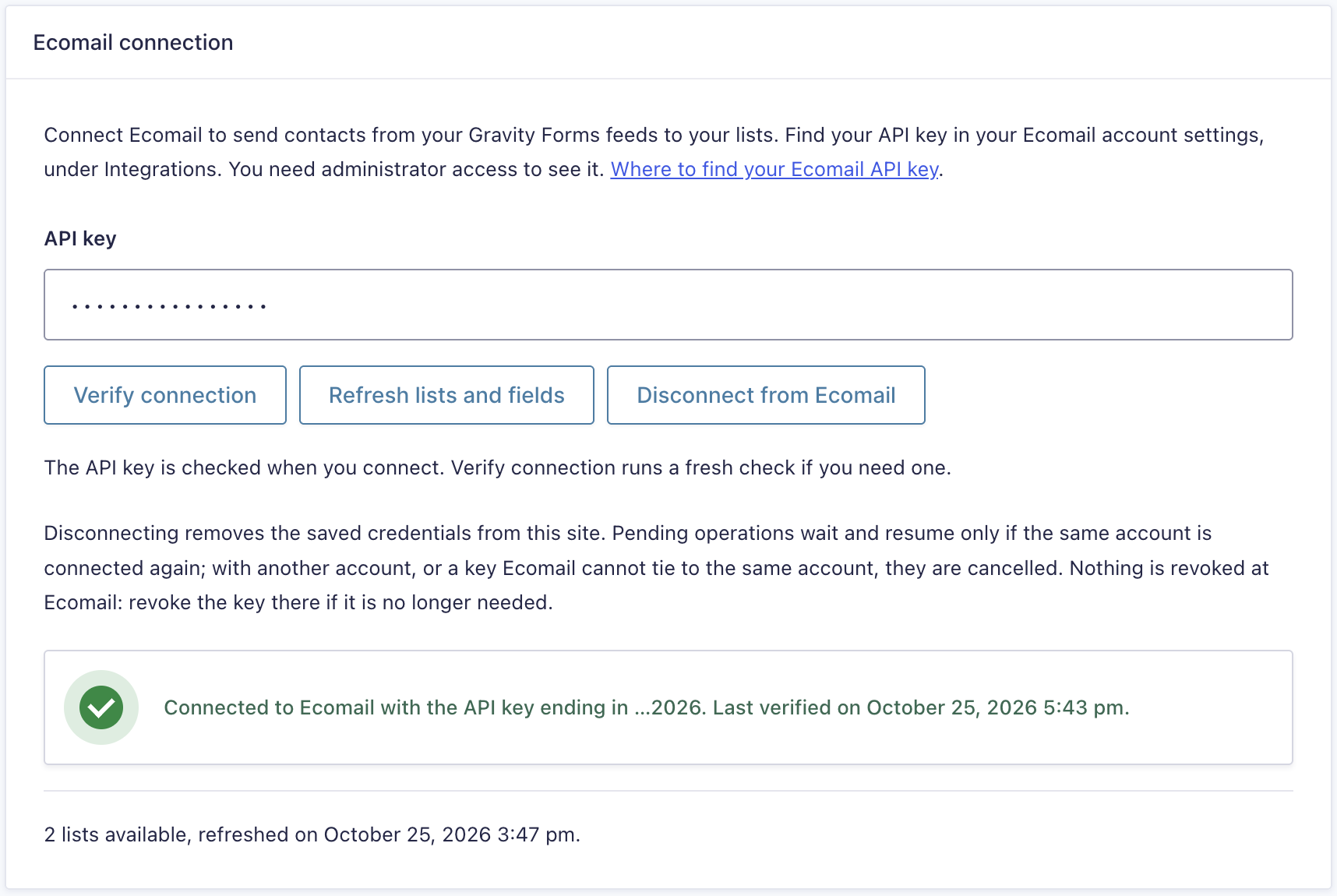
- Paste the key and choose “Connect to Ecomail”. Check for the green connection confirmation and the number of available lists.
- After adding lists or custom fields in Ecomail, use “Refresh lists and fields” before editing the integration.
The key is checked when you connect. The saved key stays masked; the page identifies it by its last four characters. Use “Verify connection” only if you need a fresh check. Opening settings does not refresh the connection or lists.
To change the key, disconnect first. If Ecomail refuses the new key, the site stays disconnected. Ecomail must return the lists and fields within 15 seconds. A timeout or more than 50 lists prevents saving the new connection; check the message in the settings.
Open full-size screenshot in a new tab
Configure your feed
- With Ecomail connected and lists available, open your form’s Settings → Ecomail and choose “Add New”. Give the feed a name.
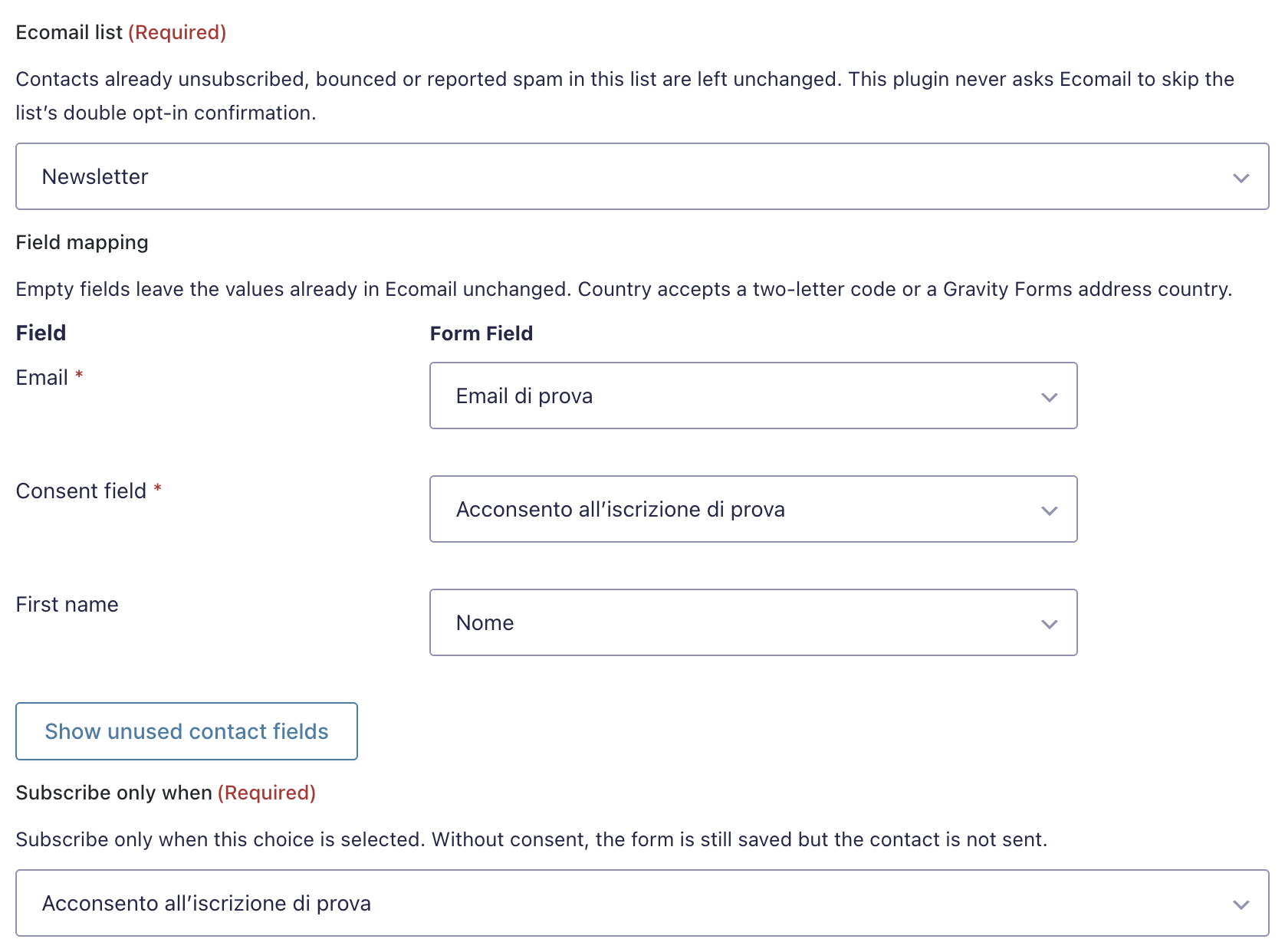
- Choose the destination list and map your form’s email field. Use “Show unused contact fields” to map more details. The custom fields below belong only to this list.
- Map the consent field. Under “Subscribe only when”, select the choice that means consent, or enter the exact stored value for other field types. For a native Gravity Forms Consent field, choose “Consent is checked”. Without consent, the form entry is saved but the contact is not sent.
- Add any tags you want to apply. The optional automation setting only requests an Ecomail automation; verify its actual effect in your account.
- Set any Gravity Forms conditional logic and save the feed. If needed, use your payment add-on’s native post-payment actions to delay the feed until payment.
Available standard fields include email, first and last name, company, phone, street, city, postal code, country, titles and birthday. Custom fields belong to the selected list. Multiple selected checkbox values are joined with commas.
Empty fields leave existing Ecomail values unchanged. Tags are additive, never removed. Consent is always required; Gravity Forms conditional logic can add further conditions, but does not replace it.
Open full-size screenshot in a new tab
Subscriptions and limitations
Existing subscribed or pending contacts receive only the populated mapped fields. Unsubscribed, bounced and spam-marked contacts in the target list are not changed. A pending contact remains pending; the plugin does not confirm it.
The plugin does not send double opt-in emails. Ecomail requires a verified sender domain for list double opt-in; the complete email-confirmation flow has not been verified for this integration. Check it in your own account. Groups are not supported.
Addresses containing an apostrophe are skipped because Ecomail rejects them; the plugin never rewrites the address. Check the entry note in Gravity Forms. Plus-sign aliases are preserved.
Test and troubleshoot
- Submit the form with a test address you control and the configured consent.
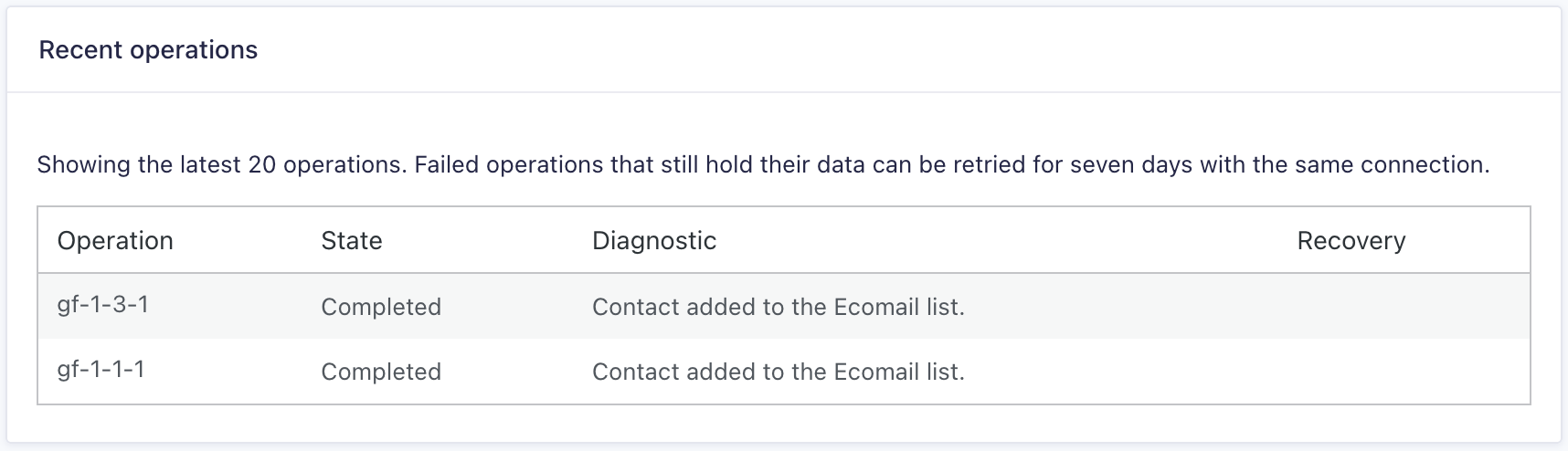
- Let WP-Cron run, then inspect Recent operations in the Ecomail connection settings. Also check the Gravity Forms entry note.
- In Ecomail, verify the list membership, mapped fields and tags. Repeat without consent and confirm that no transfer occurs.
- If operations remain queued, check WP-Cron with your host. Background processing is not immediate, especially on low-traffic sites.
Temporary API errors are retried automatically a limited number of times. Correct other errors before using manual retry, available within seven days where the operation can be recovered. It checks the contact again before writing.
Administrators see an alert in WordPress when there are active feeds and Ecomail is disconnected or has a recorded delivery problem. This is an on-screen alert, not an email or continuous connection monitor. Ecomail errors do not stop the form working.
Open full-size screenshot in a new tab
Change connections and remove data
Disconnect pauses pending operations. Reconnecting with the same API key resumes them within their seven-day retention period. Connecting a different key cancels the old pending operations, so they are not sent to another account.
While disconnected, new form entries are saved but their contacts are not queued or replayed after reconnection. Saved feeds stay editable; creating a new feed needs a working connection and available lists.
If a list, custom field or form field disappears, its saved mapping remains visible. Restore the original list or custom field in Ecomail before retrying: retries use the list and data saved at submission. Changing the mapping affects only new entries. A partial result can mean some custom fields were not sent: check Recent operations and the entry note.
Queued email addresses and mapped values are removed when processing finishes. Failed or unfinished operations keep this data for recovery; daily cleanup removes it about seven days later while the plugin is active. Deactivation stops this cleanup and retains the data.
Uninstalling also keeps local settings and data unless you enable “Delete plugin data on uninstall” first. Find this option in Forms → Settings → Ecomail. Contacts already stored in Ecomail are not deleted.
Have a use case to check?
Tell me how you use your forms and which data you want to bring into Ecomail.
Email me